
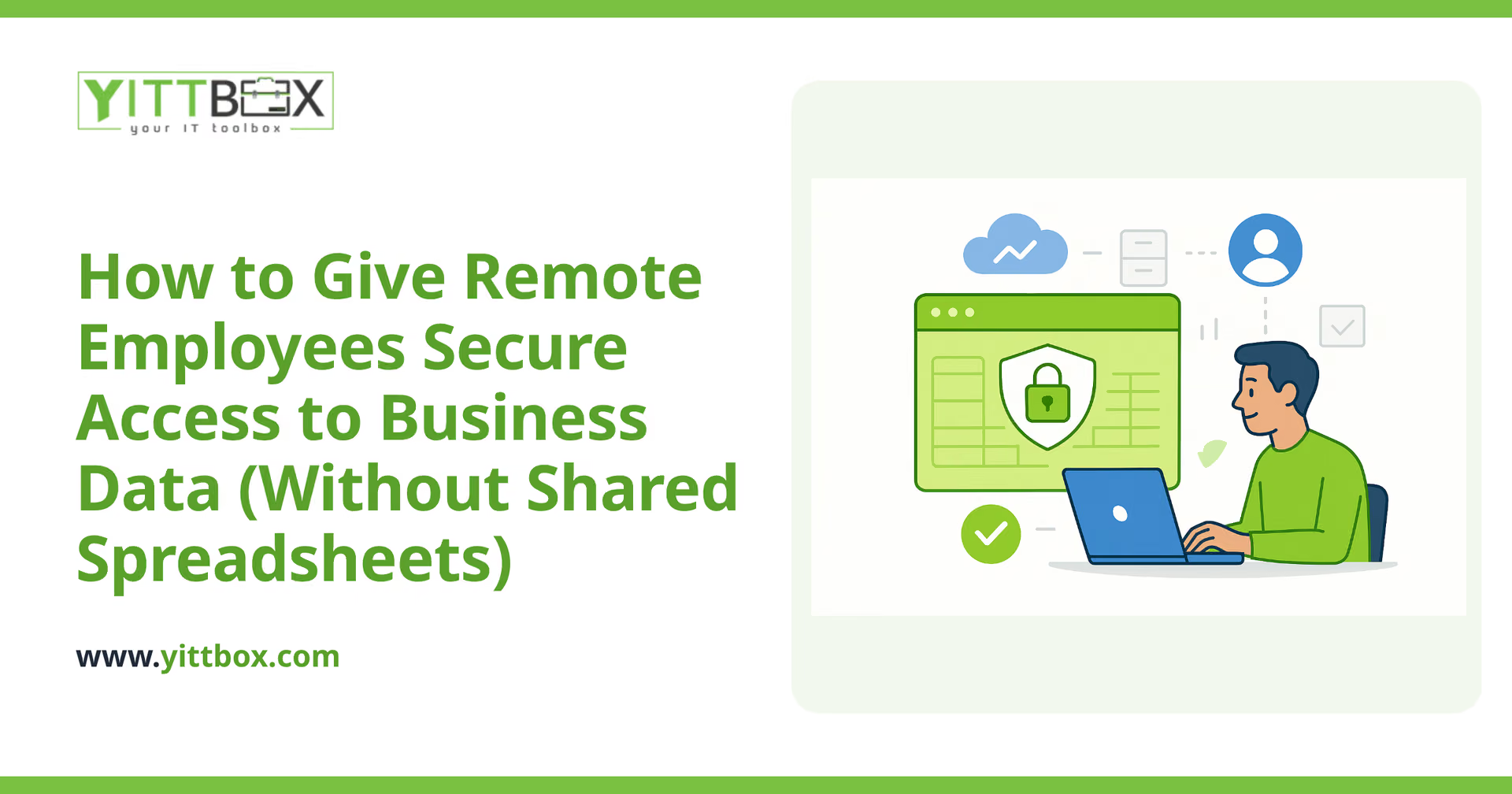
Your team is spread across home offices, job sites, and coffee shops. To keep everyone working, you've probably ended up emailing spreadsheets back and forth, or dropping them in a shared folder that half the company can open. It works, right up until two people edit the same file, someone saves over last week's numbers, or a laptop with sensitive customer data goes missing. If any of that sounds familiar, this post is for you.
Below are the questions small-business owners actually ask us about giving remote staff safe, reliable access to their data, with straight answers under each one.
Why are shared spreadsheets a security risk for remote teams?
Because a spreadsheet has no real idea of who's using it or what they're allowed to see. Once a file is shared, it can be copied, forwarded, or downloaded to a personal device, and you lose track of where your data actually lives. A few specific problems come up again and again:
- No access control. Everyone with the file sees everything in it, including columns you'd rather keep private.
- No record of changes. When a number is wrong, you can't tell who changed it or when.
- Version chaos. "Budget_final_v3_REALLY_final.xlsx" is not a system anyone can trust.
- Data on personal devices. A downloaded copy on a home laptop is completely outside your control.
For a small team in one office, these issues are annoying. For a remote team, they turn into real exposure.
What's the safest way to give remote staff access to business data?
Keep the data in one central place and let people reach it through logins, rather than handing out copies of files. The goal is simple: the information stays put, and your team views or updates it through a secure connection instead of downloading it.
In practice, a well-built web application does this by:
- Storing your data in a single, backed-up location instead of scattered files.
- Requiring each person to log in with their own account.
- Showing each person only the information their role needs.
- Recording who did what, so nothing changes without a trail.
The nice part is that your team just opens a web page and gets to work. No files to email, no versions to reconcile. If you're weighing whether to move off spreadsheets entirely, our guide to converting spreadsheets and old databases into a proper system walks through what that shift looks like.
Do I need to buy expensive enterprise software to do this?
No. Big enterprise platforms are built for big enterprise problems, and you usually end up paying for features you'll never touch, plus a subscription that grows every year. A small business is often better served by a custom-built application that does exactly what your team needs and nothing it doesn't.
The advantage of building for your own workflow is that the software fits how you actually operate, instead of forcing your team to bend around someone else's product. You own it, and you're not renting a seat for every employee forever. If you'd like a rough idea of cost for your situation, you can request a free estimate and we'll give you honest numbers.
How do I control who sees what?
Through user roles. A good system lets you decide, person by person or by job type, what each user can view and change. That means:
- Your sales staff see their own accounts, not payroll.
- A contractor can update a project without touching your financials.
- Managers see summaries; front-line staff see only their daily tasks.
Set these permissions once, and every new team member simply gets assigned a role. No more deleting columns before you send a file to the wrong person.
What happens if someone's laptop is lost or stolen?
If your data lives in a central system rather than in downloaded files, a lost laptop is a much smaller problem. There's no spreadsheet full of customer records sitting on the hard drive. You simply disable that person's login, and their access is gone, even though the device isn't in your hands.
That's a genuine peace-of-mind difference. With shared files, a missing device means a missing copy of your data. With a proper system, it means one account to switch off.
How hard is it to move away from spreadsheets?
Easier than most owners expect, because the information you need is already sitting in those spreadsheets. The work is mostly about organizing that data, building the screens your team will use, and setting up the logins and permissions. A sensible approach is to start with the one process that causes the most headaches and go from there, rather than trying to replace everything at once.
Throughout the project, you should expect plain-English updates on what's being built and why, so you're never left guessing. You shouldn't need a technical background to follow along.
Where should I start?
Start by getting an honest read on your current situation. We offer a free, no-pressure review of how your team shares data today, where the risks are, and what a safer setup might look like for you. There's no obligation and no pushy sales call, just a clear conversation and practical advice you can use either way.
When you're ready, book your free review and we'll take it from there. Even if you decide to keep things as they are for now, you'll walk away knowing exactly where you stand.
Comments
Be the first to comment on this post.