
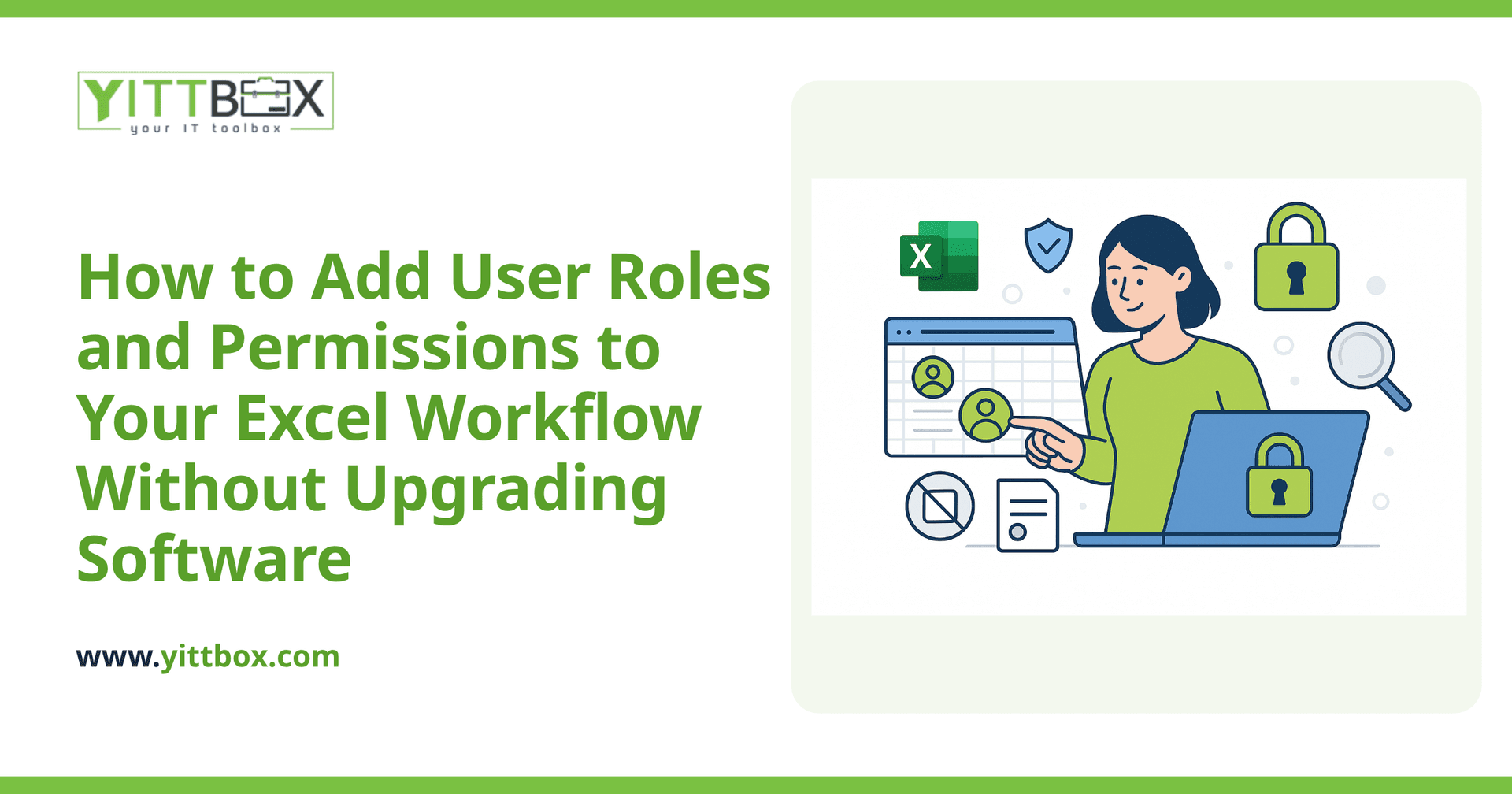
You've built a spreadsheet that runs a real part of your business. It works — until the wrong person overwrites a formula, someone deletes a row they shouldn't have touched, or you realize your part-time bookkeeper can see salary figures you'd rather keep private. At that point you start wishing Excel had proper user roles and permissions, like the expensive systems do.
The good news: you can get a surprising amount of control without buying new software or moving everything to a database overnight. Here are the honest answers to the questions small-business owners ask us most.
Can you really add user roles and permissions to Excel?
Partly, yes. Excel wasn't built as a multi-user system with true login-based roles, but it has several features that get you closer than most people realize. You can lock down cells, hide sensitive sheets, restrict who can edit which sections, and control access at the file level. It won't behave exactly like a purpose-built application, but for a small team it's often enough to stop the accidental damage and keep private data private.
How do I stop people editing the wrong cells?
Use worksheet protection combined with cell locking. By default every cell in Excel is set to "locked," but that only takes effect once you protect the sheet. The trick is to unlock the specific cells people are allowed to edit, then protect the sheet so everything else stays fixed.
- Select the cells people should be able to change, open Format Cells, and untick Locked.
- Go to the Review tab and choose Protect Sheet.
- Set a password and choose what protected users can still do (like sorting or filtering).
Now your team can type into the input fields, but they can't break the formulas doing the calculations behind the scenes.
Can different people have different access to the same file?
Yes, with a feature called Allow Edit Ranges. It lets you assign different passwords to different areas of the same worksheet. For example, your sales lead gets the password to edit the pipeline section, while your admin only gets the password for the contacts section. Each person can only unlock the part that's theirs.
It's fiddly to set up and it relies on people keeping passwords to themselves, so it works best for small, trusted teams. Once you have more than a handful of people — or genuinely sensitive data — password juggling starts to creak.
How do I hide sensitive information like pay or margins?
Move it to its own worksheet, then hide and protect that sheet. Right-click the sheet tab, choose Hide, then protect the workbook structure (Review tab, Protect Workbook) so nobody can simply unhide it without the password. Your formulas can still pull numbers from the hidden sheet, but the people using the workbook never see the underlying figures.
This is a solid quick fix. Just remember it's a curtain, not a vault — anyone determined enough with the file can eventually get in.
Where does Excel stop being enough?
Honest answer: Excel's permission features are designed to prevent honest mistakes, not to enforce real security. You'll usually hit the ceiling when:
- More than a few people need to work in the file at the same time.
- You need a proper record of who changed what and when.
- Different roles need to see genuinely different views of the data.
- Sharing the master file over email or a shared drive keeps creating duplicate, conflicting versions.
- The data really must be protected, not just tidied out of sight.
If you're nodding at two or three of those, spreadsheet tricks are probably costing you more time than they save. That's usually the point where a small custom web application earns its keep — everyone logs in, sees only what their role allows, and edits happen in one central place with a proper history. You can read more about converting a spreadsheet into a proper application when you're ready.
Is it worth upgrading, or should I stick with Excel?
It depends entirely on how much the current setup is holding you back. Plenty of businesses run happily on well-protected spreadsheets for years, and there's nothing wrong with that. The moment to consider a change is when you're spending real hours untangling version conflicts, chasing who changed a number, or worrying about who can see what.
A good rule of thumb: if the workarounds above solve your problem for the next year or two, use them. If you already know you're patching over a structural limit, it's worth costing out a proper solution before the frustration compounds. You can get a plain-English estimate without committing to anything.
What's the easiest first step if I'm not sure?
Start by writing down two things: what's actually going wrong today, and how often. "Someone overwrites the totals about once a month" is far more useful than "the spreadsheet is a mess." That short list tells you whether the built-in Excel features will do, or whether it's time for something purpose-built.
If you'd like a second opinion, we offer a free, no-pressure review of your current setup. We'll look at what you've got, tell you honestly whether protecting your spreadsheet is enough or whether a small custom application would pay off — and there are no pushy sales calls attached. If Excel is genuinely fine for you, we'll say so. When you're ready, see how we modernize spreadsheet workflows and take it from there.
Comments
Be the first to comment on this post.