
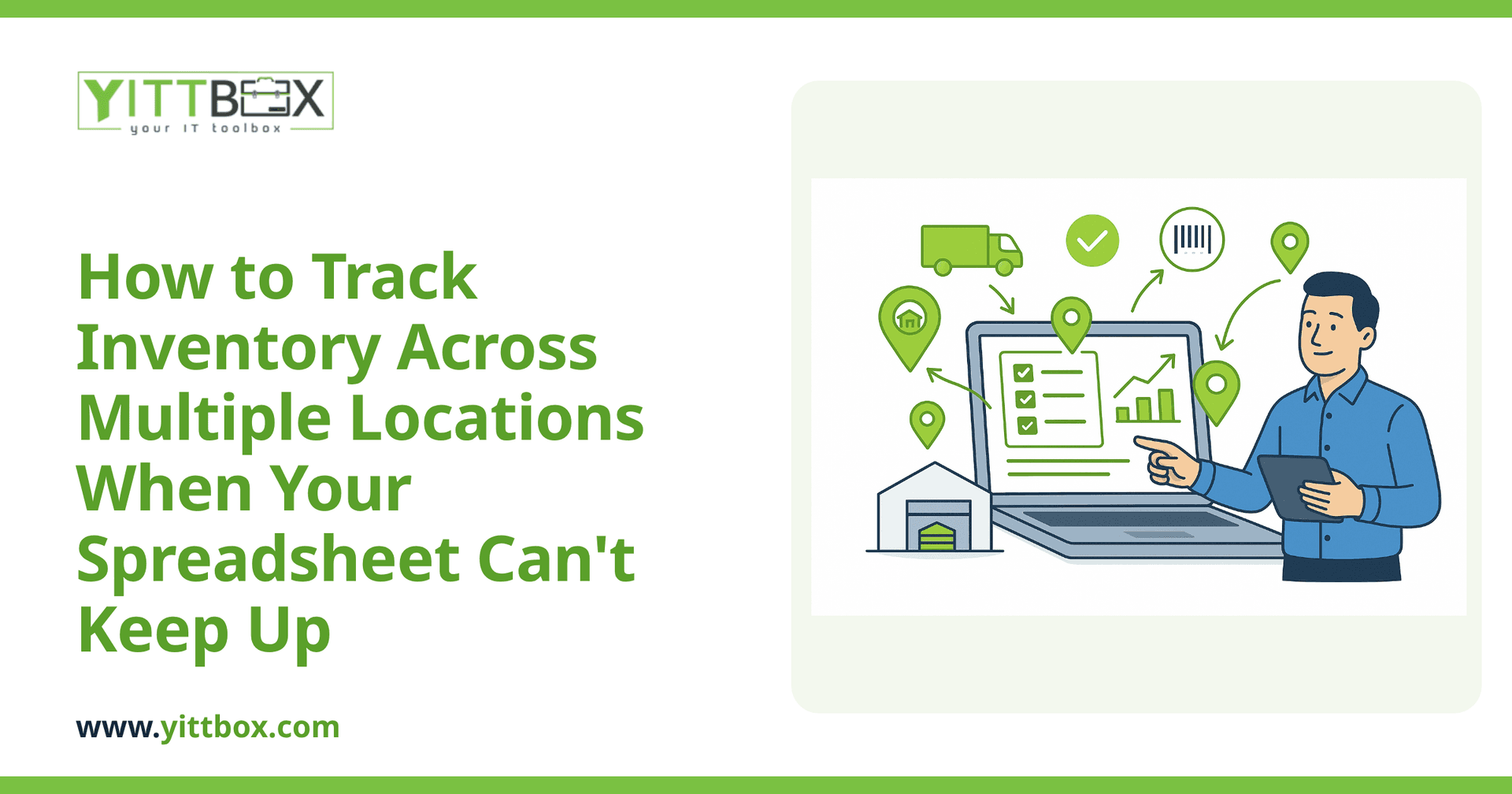
You sell the same item twice because two locations were both looking at stock that had already moved. A warehouse thinks it has 40 units; the shop floor knows it has 12. Someone emails an updated spreadsheet at 4pm, but by then three people have already made decisions on the old numbers. If any of this sounds familiar, the problem isn't your team — it's that a spreadsheet was never built to be in two places at once.
Here's the honest truth about tracking inventory across multiple sites, and what actually fixes it.
Why can't my spreadsheet sync inventory in real time across locations?
Because a spreadsheet is a document, not a live system. Even in the cloud, it's designed for one person to edit at a time. When several people and locations touch the same file, you run into a few predictable problems:
- Overwrites. Two people edit at once and one person's numbers quietly replace the other's.
- Copies everywhere. Each location ends up with its own version, and no one's sure which is current.
- No single source of truth. Stock counts only reflect the last time someone remembered to update the file.
A spreadsheet can hold your data. It just can't be the thing that keeps every location honest at the same moment.
What does "real-time inventory" actually mean for a small business?
It means everyone is looking at the same numbers at the same time, and those numbers change the instant stock moves. When a sale happens at Location A, the count drops for everyone — including the person doing purchasing three towns over.
In practice, real-time inventory gives you:
- One shared count that every location reads from and writes to.
- Automatic updates when items are received, sold, or transferred.
- A clear record of who changed what and when.
You don't need a warehouse full of technology to get this. You need a system where the data lives in one place and every location connects to it, instead of passing files around.
Do I need to replace my whole system, or can I build on what I have?
You almost never need to start from scratch. Most small businesses already have years of useful information sitting in those spreadsheets — product lists, suppliers, historical counts. That data is worth keeping.
A sensible approach is to move the data out of the flat file and into a proper shared database, then put a simple screen in front of it so your team can work the way they already do. You can read more about how that migration works on our spreadsheet-to-application page. The goal is to keep everything familiar while removing the parts that cause double-selling and stale counts.
What should a multi-location inventory system actually do?
You don't need every feature under the sun. For most businesses running two to a dozen locations, the essentials are:
- Live stock levels per location — see what's where, right now.
- Transfers between sites — move stock and have both locations' counts update automatically.
- Low-stock alerts — get told before you run out, not after.
- Simple receiving — log deliveries once and have them reflected everywhere.
- Access from any location — from a computer, tablet, or phone, without emailing files.
Anything beyond that should earn its place. A tool that does the five things above reliably beats one crammed with features nobody uses.
Won't off-the-shelf inventory software solve this for me?
Sometimes, yes — and if a standard product genuinely fits how you work, that's often the cheaper route, and we'll tell you so. But packaged software assumes your business runs a certain way. If you have unusual units of measure, custom pricing tiers, specific transfer approvals, or workflows that don't match the software's assumptions, you end up bending your business to fit the tool.
A custom-built system does the opposite: it fits your process instead of forcing you to change it. It also tends to stay simpler, because it only contains what you actually need. If you're weighing the two, a quick look at your situation usually makes the answer obvious.
How much disruption should I expect during the switch?
Less than you'd fear, if it's done in stages. A good migration usually looks like this:
- Review your current spreadsheets and how each location really works.
- Move your existing data across so nothing is lost.
- Run the new system alongside your old process for a short while.
- Switch over once your team is comfortable.
Throughout, you should always understand what's happening in plain English — no jargon, no surprise. You can see how we scope this kind of project on our free estimate page.
What's the first step?
Start by writing down the moments things go wrong: the double-sale, the stale count, the file that got overwritten. Those pain points are the blueprint for what you need.
When you're ready, we're happy to take a free, no-pressure look at your current setup and tell you honestly what would help — even if that turns out to be a small change rather than a full build. There are no pushy sales calls; just a straightforward review of where you are and where you'd like to be. You can request a free review here whenever it suits you.
Comments
Be the first to comment on this post.