
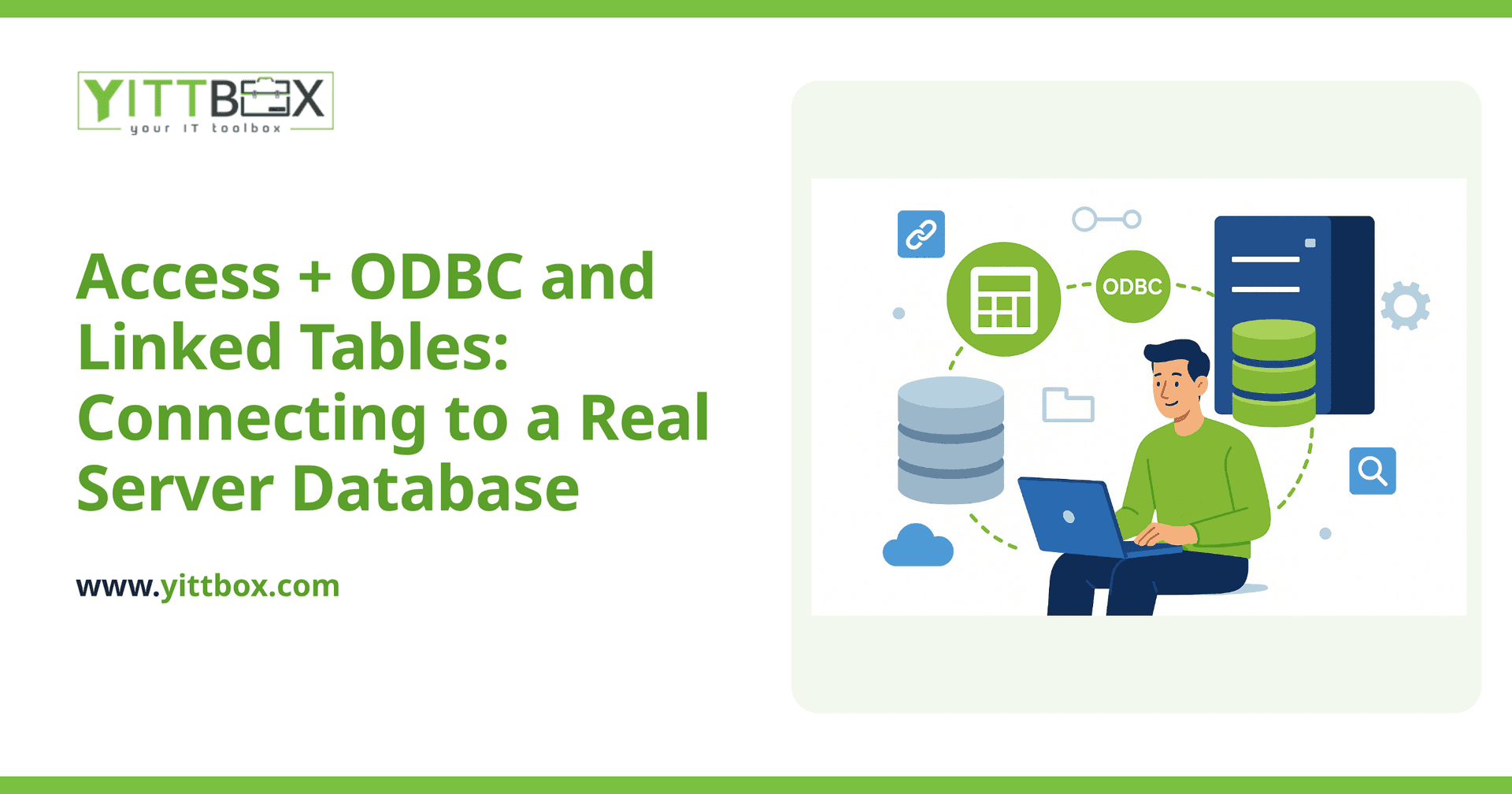
A common first step out of Access's file-size and concurrency limits is keeping Access as the front-end while moving the actual data to a real server database like SQL Server or Azure SQL. ODBC and linked tables are the mechanism that makes this possible.
What is ODBC, and why does Access need it?
ODBC (Open Database Connectivity) is a standard interface that lets an application like Access talk to a database engine it wasn't originally built around — in this case, a real client-server database instead of its own native file format. Access uses an ODBC driver for the target database (for example, the "ODBC Driver for SQL Server") to establish that connection.
What are linked tables, and how are they different from local Access tables?
A linked table looks and behaves like a normal Access table in your forms, reports, and queries — but the actual data lives on the server, and Access is only holding a live reference to it. When you add, edit, or query a linked table, Access sends that request to the server database in real time rather than reading from a local file.
What does this fix, and what does it not fix?
It fixes the data-layer limits directly: the 2 GB file-size ceiling disappears (your data now lives in a real server database with no such cap), and a properly configured server database handles many more concurrent connections than Access's own file-based locking ever could. What it does NOT fix: Access remains your interface, so you're still bound by whatever UI and security limitations Access itself has — this is a data-layer fix, not a full modernization.
How do you set up a linked-table connection?
In Access, go to External Data → New Data Source → From Other Sources → ODBC Database, choose "Link to the data source," and create (or select) a System DSN pointing at your target server, database, and authentication. Once connected, select which server tables to link — they'll appear in your Access table list exactly like local ones, ready to use in existing forms and queries with minimal rework.
What performance considerations come with linked tables?
Every linked-table interaction now involves a network round-trip to the server, so queries that were instant against a local file can feel slower over ODBC, especially ones that pull large result sets or run in a tight loop. The practical fix is usually to push more filtering into the query itself (so the server returns less data across the wire) rather than pulling everything locally and filtering in VBA — a small redesign, but usually a manageable one.
Should you use linked tables directly, or pass-through queries?
Linked tables are the simpler, more common approach and work well for most forms and everyday use. Pass-through queries — which send raw SQL directly to the server rather than going through Access's own query engine — can be faster for complex reporting queries, since the server does the heavy lifting and only sends back the final result, but they lose some of Access's convenience (editable recordsets, for instance) and require writing SQL in the server's own dialect rather than Access's. Many split databases use linked tables for day-to-day data entry and pass-through queries for the handful of genuinely heavy reports.
What authentication should the ODBC connection use?
Prefer server-native authentication tied to individual users (or a securely managed service account) over a single shared login embedded in the connection — a shared credential means you lose any ability to audit who actually made a given change, which undercuts one of the real security benefits of moving off Access in the first place. If your server supports it, integrated/Windows authentication that maps to each user's own network login is the cleanest option.
Is this the same thing as a full migration?
No — this is specifically a data-layer fix. Your forms, reports, and business logic are still Access, with Access's own interface and its own concurrency/security ceilings on that layer. It's a legitimate, often cost-effective step for many businesses, and for some it's a durable end state — but it's worth being clear-eyed that it solves the data problem, not the interface problem, so you can decide deliberately whether that's enough for your situation or a stepping stone toward a fuller migration.
What's a realistic first step if you want to try this?
Start with a single, non-critical table linked via ODBC to a test server database, and put it through real use for a while before touching anything business-critical. This lets your team get comfortable with the connection's behavior and performance characteristics, and gives you a low-stakes way to validate the approach before committing your core tables to it.
This article is part of our Microsoft Access modernization guide — the hub for our full Access modernization cluster, including migration targets, database architecture, and ongoing operations.
Comments
Be the first to comment on this post.