
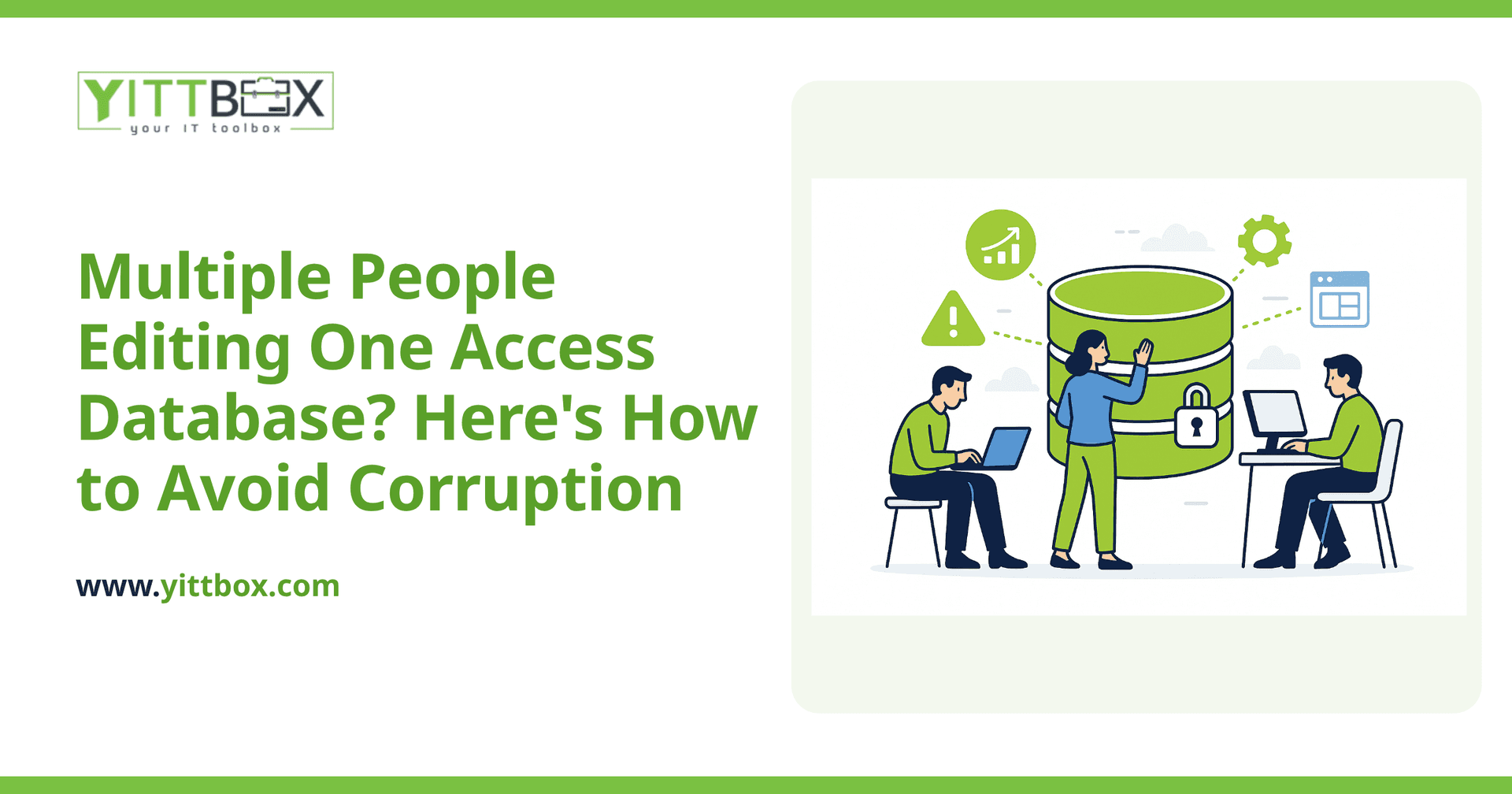
You know the drill. Two people open the same Access database at once, someone saves, and suddenly a record vanishes or the whole file throws an error and won't open. For a lot of small businesses, that shared Access file is the backbone of daily operations — orders, inventory, customer records — so when it breaks, work stops.
The good news: file corruption from shared editing is a solvable problem, and you don't have to abandon everything you've built. Below are the questions we hear most from business owners in exactly this situation, with straight answers.
Why does Access get corrupted when multiple people use it?
Access was designed as a single-file database, and when several people open that one file over a network, they're all reading and writing to the same document at the same time. Corruption usually happens when that shared connection is interrupted mid-write — someone's computer goes to sleep, the Wi-Fi drops, a machine reboots, or the file is stored on an unreliable network share.
A few common triggers:
- Unstable network connections — wireless drops are a leading cause.
- Everyone sharing one .accdb file with both the data and the forms/reports bundled together.
- Machines going to sleep or shutting down while the database is still open.
- Too many simultaneous users pushing the file past what it was built to handle.
How many people can safely use an Access database at once?
Realistically, a well-configured Access setup handles a small handful of light users — think a few people who mostly view records and occasionally edit. On paper Access allows more, but in day-to-day practice, the more people writing to the file at the same time, the higher the risk of a lock-up or corruption. If you have five or more people editing regularly, or the database is central to your revenue, you've likely outgrown what a shared file can reliably do.
What's the quickest way to reduce corruption right now?
Before any bigger change, there are practical steps that lower your risk immediately:
- Split the database. Separate your data (the tables) into a "back-end" file on the server, and give each person their own copy of the "front-end" (the forms and reports). This is the single most effective fix within Access itself.
- Put the back-end on a wired, reliable server — not a random desktop under someone's desk or a flaky wireless share.
- Stop machines from sleeping while the database is open, and have people close it at the end of the day.
- Back up daily, automatically. When corruption does strike, a recent backup is the difference between a five-minute restore and a lost week.
- Run Compact & Repair regularly to keep the file healthy and lean.
These steps buy you breathing room. They don't change the fundamental limit of a shared file, but they meaningfully cut the odds of losing data.
Is splitting the database a permanent fix?
It's a genuine improvement, not a permanent cure. Splitting the file reduces corruption and improves speed, and for a small team it may be all you need for a good while. But if your business keeps growing, more users and more data will eventually push against the same ceiling. Think of splitting as good maintenance — it keeps the current setup running well, but it doesn't turn Access into a true multi-user system.
When should I move off Access entirely?
It's usually time to consider a move when the pain becomes routine rather than rare. Clear signs include:
- Corruption or lock-ups happen often enough that people plan around them.
- More than a few people need to edit at the same time.
- You want secure access from more than one location, or from a browser.
- The database is now critical enough that a day of downtime seriously hurts.
- You're spending real time babysitting the file instead of running your business.
At that point, a web-based application backed by a proper multi-user database solves the problem at the root. Many people can work at once, from anywhere, with no shared file to corrupt — and you keep all the logic and structure you've already built up over the years. If that's the direction you're weighing, our guide to converting an Access database to a web application walks through what the process actually looks like.
Will I lose my existing data if I upgrade?
No. A good migration carries your existing records over intact, and it can preserve the forms, reports, and workflows your team already knows. The goal is to keep what works about your current setup and remove the fragile parts. When we handle a conversion from Access, keeping your data safe and your team productive during the switch is the whole point — not a bolt-on afterthought.
Where should I start?
If your shared Access database is causing daily headaches, start small: split the file, move it to reliable storage, and get automatic backups running. That alone will calm things down. From there, it's worth an honest look at whether the setup can carry your business for the next few years or whether it's time to modernize.
That's something we're happy to help you think through. We offer a free, no-pressure review of your current situation — no pushy sales calls, no jargon, just a plain-English read on your options and what each would involve. Whether the answer is a few tweaks or a bigger upgrade, you'll walk away knowing where you stand.
Comments
Be the first to comment on this post.