

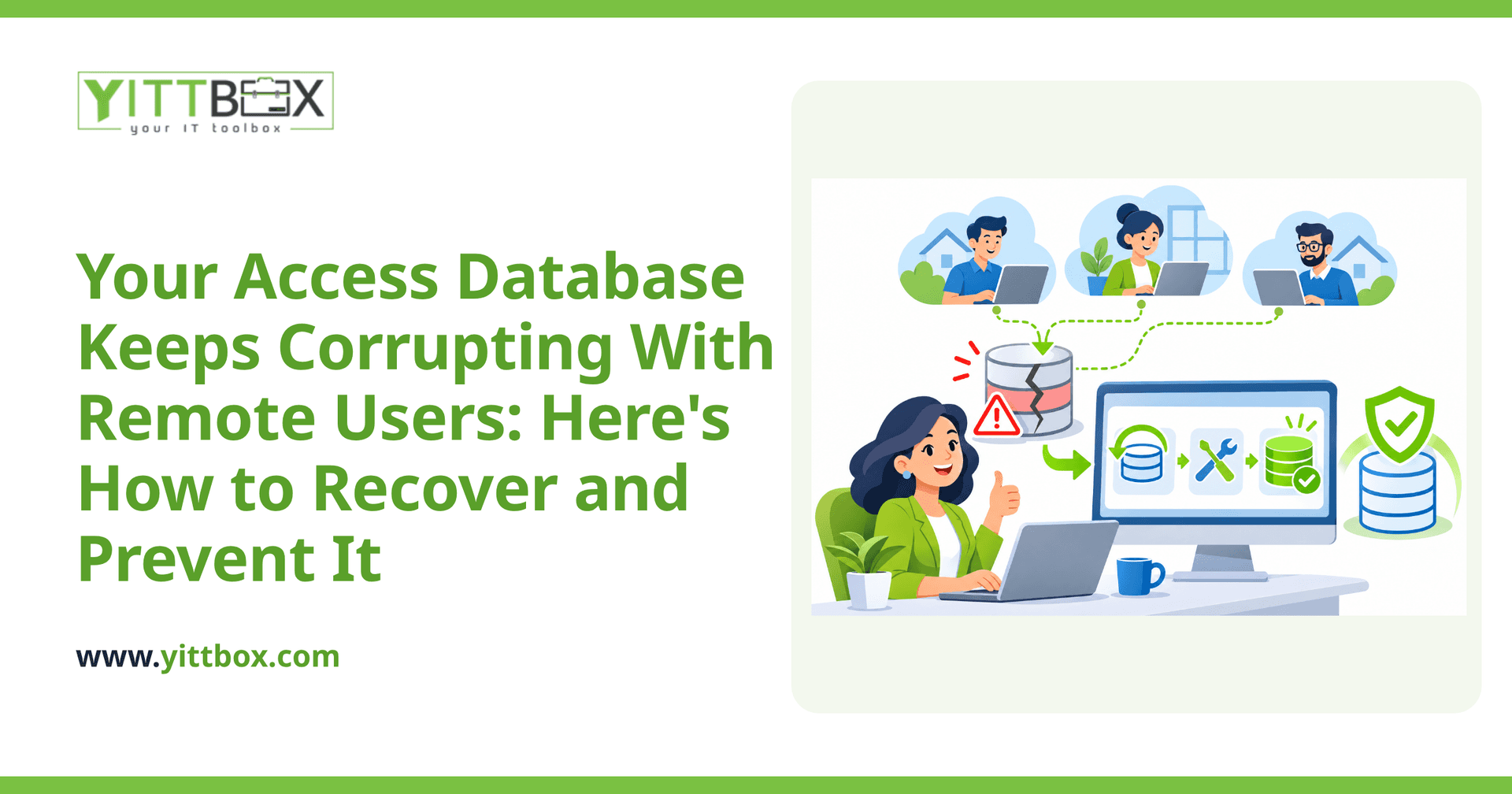
You open your Access database on Monday morning, and instead of your customer list you get an error message: "Unrecognized database format" or "The database is in an unexpected state." A few staff worked remotely over the weekend, all connected to the same file, and now nobody can get in. If your stomach just dropped, you're not alone. This is one of the most common problems we hear about from small businesses, and the good news is that it's both recoverable and preventable.
Why does my Access database get corrupted when people work remotely?
Access was built to store its data in a single file, and that file was designed for a handful of people on the same office network. When several people open it at once over a remote connection or a VPN, the risk of corruption climbs sharply.
The core reasons are:
- Dropped connections. A remote link that flickers mid-write can leave the file half-updated and damaged.
- Concurrent writes. Two people saving to the same record at the same moment can scramble the internal structure.
- Latency. Access expects near-instant read and write times. Over the internet, delays cause timeouts that the file doesn't handle gracefully.
- Files that live on a synced folder. Dropbox, OneDrive, or Google Drive syncing an open Access file is a common and painful cause of corruption.
None of this means you did anything wrong. Access simply wasn't designed for the way your business needs to work today.
What should I do the moment I discover the corruption?
Stay calm and stop making the situation worse. Rushing tends to cause more damage.
- Get everyone out. Ask all users to close the database immediately so nothing else is written to the damaged file.
- Make a copy first. Before you try any repair, copy the corrupted file somewhere safe. If a fix goes wrong, you'll still have the original to work from.
- Find the .laccdb or .ldb lock file. If a matching lock file is sitting in the same folder with no one connected, it's usually safe to delete it once everyone is out.
- Don't overwrite your backups. If you have an automatic backup routine, pause it so it doesn't replace a good backup with the broken version.
Can I repair the file myself?
Often, yes — for lighter corruption. Access has a built-in tool worth trying before you call anyone.
- Compact and Repair: Open Access (without opening the broken file directly), then use Database Tools > Compact and Repair Database and point it at your copied file. This resolves a good number of everyday issues.
- Import into a fresh database: Create a brand-new empty database and import the tables, queries, and forms from the damaged one. Sometimes the healthy objects come across cleanly and leave the corruption behind.
- Restore from backup: If the repair fails, your most recent clean backup is your safest route. This is exactly why frequent, automatic backups matter so much.
If the file holds critical records and nothing above works, it's worth getting a second set of eyes before you give up on the data. We're happy to take a look — no charge to review your situation.
How do I stop this from happening again?
Repairing the file gets you back on your feet, but it doesn't fix the underlying reason it broke. As long as remote users share a single Access file, the risk stays with you. Here are the honest options, from quickest to most durable:
- Split the database. Separate your data (the tables) from your interface (forms and reports) into two files. It reduces some corruption but doesn't fully solve remote access.
- Move the data to a proper server database. Keeping your Access front-end but storing the actual data in a server-grade database removes the biggest cause of corruption.
- Move to a web application. The most reliable long-term answer is a custom web app your team opens in a browser from anywhere. There's no shared file to corrupt, everyone works on live data, and remote work becomes a non-issue.
If your business has outgrown Access, we help owners convert an aging Access database into a modern web application that's built for remote teams from day one. You keep the parts of your process that work and lose the weekend panic.
Isn't rebuilding everything expensive and disruptive?
It's a fair worry, and the honest answer is: it depends on what you've got. A modest database with a few key screens is a very different job from a sprawling one with years of custom logic. That's why we don't quote blind or push you toward the biggest option.
What we do instead is look at your actual setup, explain in plain English what's causing the corruption, and lay out your realistic choices — including the cheaper ones. If moving forward makes sense, you'll get a clear, no-obligation estimate so there are no surprises.
What's the simplest next step?
If you're dealing with an Access file that keeps breaking every time your team works remotely, start by getting a free, no-pressure review of your situation. We'll tell you honestly whether a repair, a data move, or a full conversion to a web app is the right call for your business — and if the quick fix is all you need, we'll say so. No pushy sales calls, just plain answers.
Comments
Be the first to comment on this post.