
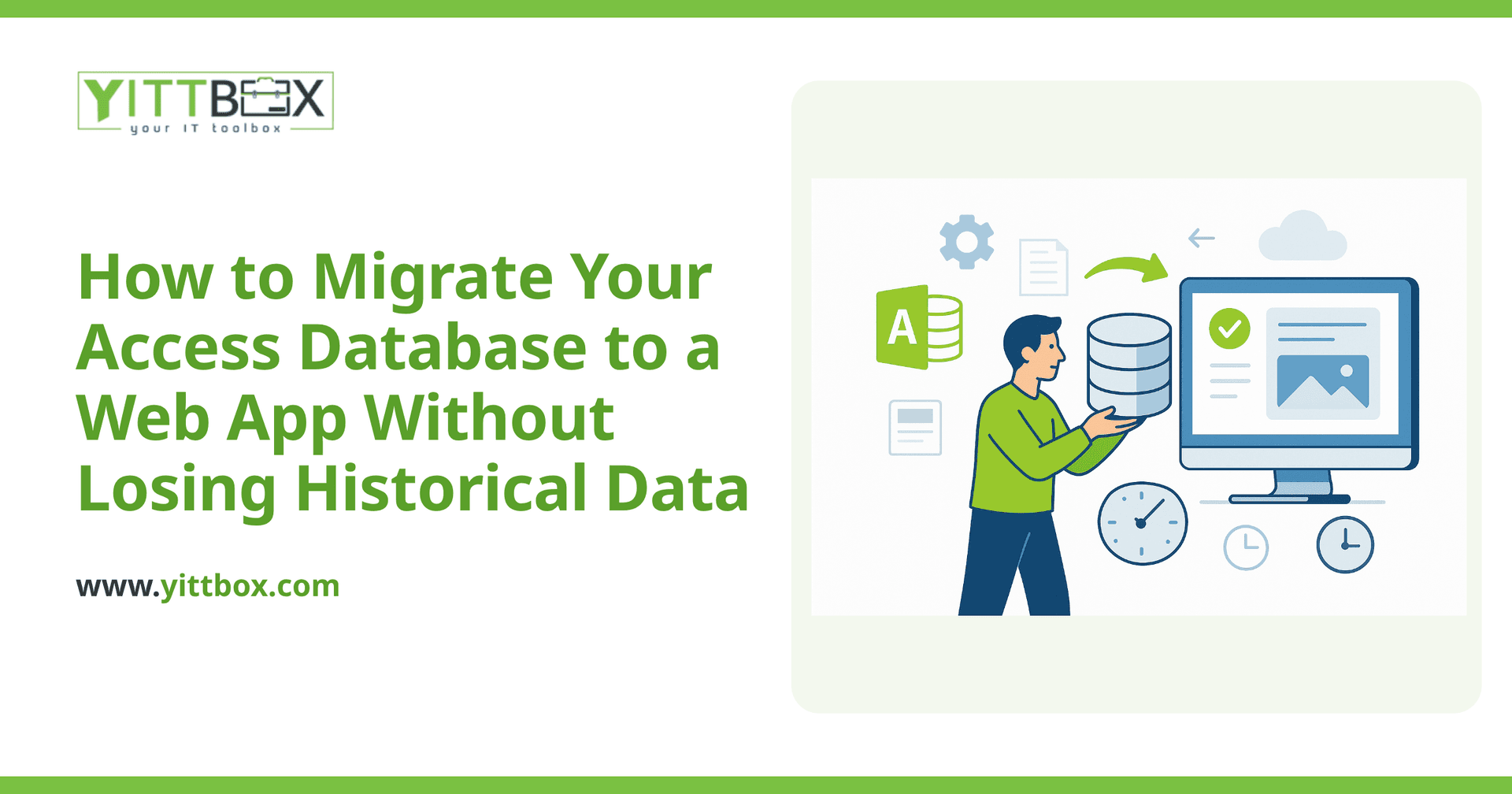
Your Access database has done its job for years. It holds your customers, your orders, your invoices — and quietly, it holds your history. Every past job, every old contact, every record you might need again someday. So when someone suggests moving to a modern web app, the first worry that surfaces is usually the same one: what happens to all my old data?
It's a fair question, and the honest answer is that a good migration keeps every record you care about. Below are the questions small-business owners ask us most often, with straight answers to each.
Will I lose my historical data when I move off Access?
No — not if the migration is done properly. Your historical data is one of the most valuable things your business owns, and the entire point of a migration is to carry it forward, not leave it behind. A careful move copies your existing records into the new system, checks them against the originals, and keeps your old database untouched as a backup until you're confident everything landed correctly.
The risk of data loss comes from rushing or skipping the verification step, not from the move itself. When it's planned properly, you end up with the same information you have today — just in a system that's easier to use and available from anywhere.
How does the migration process actually work?
At a high level, moving from Access to a web app follows a clear, plain-English sequence:
- Review your current database. We look at your tables, relationships, forms, and reports to understand what you have and what actually gets used.
- Plan the new structure. Years of Access tinkering often leave duplicate fields or workarounds. We map your data to a clean structure so the new app is tidy from day one.
- Transfer the data. Your records are moved across in bulk, including historical entries — old customers, closed jobs, past invoices, everything.
- Verify against the original. We compare record counts and spot-check data so you know nothing went missing or got garbled.
- Run both side by side. For a short period you can keep the old database as a safety net while you get comfortable with the new one.
If you'd like a sense of how this would look for your specific setup, our Access-to-web-app conversion page walks through what's involved.
What about my old forms, queries, and reports?
Those come across too, though usually in an improved form. Access forms and reports were designed for a desktop world. In a web app, the same information can be rebuilt as clean screens and reports you reach from a browser — no installing anything, no being tied to one office computer.
We start by listing the reports and forms you rely on, then recreate the ones that matter and quietly retire the ones nobody's opened in years. You keep the function you use every day, without dragging along clutter you don't.
How long does an Access migration take?
It depends on the size and messiness of your database, but most small-business migrations are measured in weeks, not months. A single-user database with a handful of tables moves quickly. A database that's grown for a decade, with lots of interconnected tables and custom reports, takes longer because there's more to map and verify.
The most honest answer is that we can only give you a real timeline after looking at your actual database. That's exactly what a free estimate is for — a look at what you have, followed by a plain-English scope and timeframe, with no obligation to go ahead.
Can I keep working while the migration happens?
Yes. Your existing Access database keeps running throughout the process. Nothing about the migration forces you to stop taking orders or serving customers.
When it's time to switch over, we usually do a final data sync so any records you've added during the project come across too. That way there's no gap — you finish your day in Access and start the next one in the new web app with everything up to date.
What happens to the old Access file afterward?
You keep it. We never delete your original database as part of a migration. It stays with you as a frozen snapshot of your data at the moment you switched, which is both a safety net and a permanent archive.
Some businesses hang onto it for years just for peace of mind, and there's no harm in that. It simply sits there, untouched, in case you ever want to look something up the old way.
How do I know if it's the right time to move?
A few signs tend to point in the same direction:
- Only one person can use the database at a time, and it's slowing your team down.
- You need to check records from home, on-site, or on the road, but Access ties you to one machine.
- The file keeps corrupting, or you're nervous about losing it.
- New staff struggle to learn it, and the person who built it has moved on.
If two or more of those sound familiar, it's worth at least having a conversation.
Where should I start?
Start by understanding your options — no commitment required. We offer a free, no-pressure review of your current Access setup. We'll look at your database, explain in plain English what a move would involve, what your history would look like afterward, and roughly what it would take. There are no pushy sales calls and no jargon.
When you're ready, you can request your free estimate or read more about how a conversion works. Either way, your historical data stays exactly where it belongs — with you.
Comments
Be the first to comment on this post.